Back
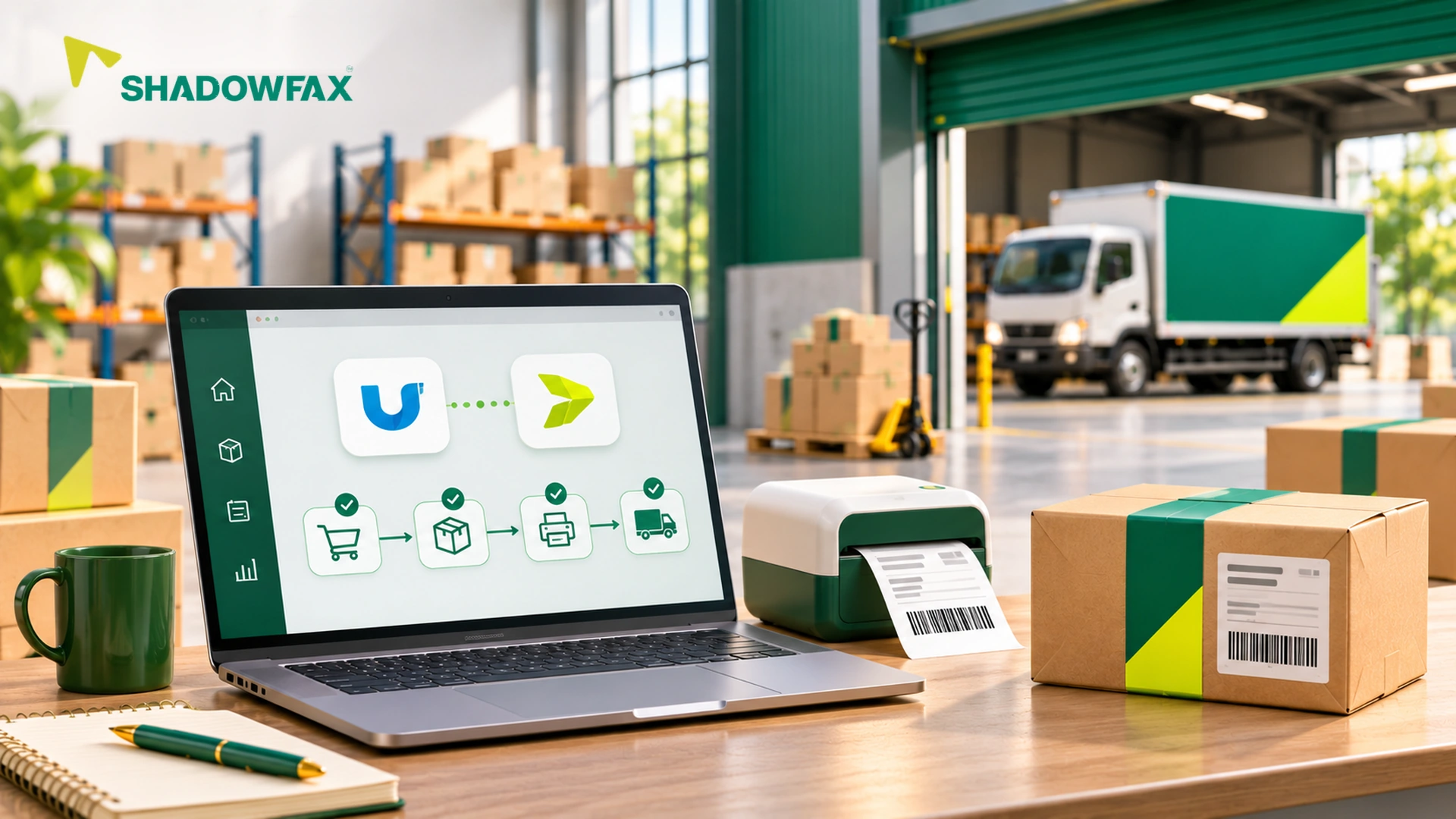


For a brand moving beyond manual dispatch, Shadowfax is a courier option in Unicommerce (Uniware). Once your team configures the connector, Uniware requests an AWB from Shadowfax by API for each assigned shipment, prints the label and shows tracking updates. Your team still packs the order, creates the manifest and hands the parcel over to Shadowfax.
As orders grow, your team can prepare a batch for handover in Uniware instead of entering each AWB by hand. Create a manifest for the channel and Shadowfax, then scan the shipment IDs or AWBs, or add packages from the ready-to-ship list. Print and close the manifest before handing over the parcels.
Before moving regular dispatch to Shadowfax, test a real COD order from AWB request through handover, tracking and cash reconciliation. That gives your team a way to check the connector and the agreed delivery process together.
Shadowfax is a third-party logistics provider, or 3PL, as well as a courier. Our broader 3PL offering covers pickup, parcel delivery, tracking and reverse logistics under an agreed scope. The Unicommerce integration connects the courier part of that offering.
The documented Unicommerce courier integration connects Uniware to Shadowfax through its Shipping Provider connector. Your admin enters the credentials issued by Shadowfax in Uniware, and the connector uses the API to fetch an AWB from Shadowfax. Uniware prints the label and shows tracking against that AWB; Shadowfax moves the parcel through its last-mile network.
The documented setup does not list a separate middleware platform between Uniware and Shadowfax. It is a direct shipping-data connection, not an outsourced warehouse integration or a direct connection to a separate warehouse system such as Increff. If your stock sits with an outsourced warehouse or another WMS, scope that integration on its own. If you are still choosing between a direct courier, an aggregator and a 3PL, our comparison of courier, aggregator and 3PL models sets out who owns what in each model.
Start with a Shadowfax account. The connector cannot authenticate without the username and password the Shadowfax team issues to each seller. That team also tells you which Service Type your agreement uses (Uniware offers "Warehouse" or "Marketplace") and how parcels will be handed over.
Bring your real pickup PIN codes, destination mix, parcel sizes and COD share to that conversation. Our network covers 16,681+ PIN codes (as of November 2026), but that doesn't promise every service on every route. Check serviceability for the routes you actually ship. You can see the services behind the connector on our Shadowfax ecommerce and D2C delivery page.
Your Uniware admin adds Shadowfax under Settings > Shipping Providers > Add Shipping Provider, searches for Shadowfax and fills in the form. Uniware's Shadowfax integration guide is the field-by-field reference:
After saving, open Connectors and enter:
Connector field | What to enter |
User Name, Password | Credentials from the Shadowfax team |
Service Type | Warehouse or Marketplace, as your agreement specifies |
Hand Over Mode | Blank, Pickup or Drop. Uniware's guide says Drop is the usual choice |
Pickup Address Id | Blank by default |
Fetch Label Link | False, because Uniware prints the label |
Click Connect to finish. These fields come from Uniware's current documentation, so confirm them with both teams before you rely on them.
This is an illustrative example, not a recorded shipment. A ₹1,499 cash-on-delivery order from your website arrives in Uniware and is packed at your Jaipur warehouse.
1. Allocation (Uniware). Uniware checks your serviceability rule and assigns Shadowfax under the COD method.
2. AWB (Shadowfax). Through the API, Uniware requests an AWB and Shadowfax returns one. No pre-loaded AWB list is needed.
3. Label (Uniware). Uniware prints the label with that AWB. On Uniware's Standard and Professional plans, its print templates can't be customised.
4. Manifest (Uniware). Your team goes to Fulfillment > Manifests, creates a manifest for one sales channel with Shadowfax and the COD method selected, scans the AWB, then prints and closes the manifest. Uniware marks the shipment Dispatched.
5. Handover (your team and Shadowfax). The parcel reaches Shadowfax by the hand-over mode you agreed. Don't assume automatic pickups. Agree pickup windows or drop points per warehouse first.
6. Tracking (Shadowfax, shown in Uniware). Status updates flow back against the AWB.
7. Cash (per your Shadowfax agreement). COD collection and remittance follow your commercial terms, not the connector settings.
Prepaid orders follow the same path under the Prepaid method. For a batch, Uniware lets your team add ready-to-ship packages to the manifest by scanning shipment IDs or AWBs, or selecting from the ready-to-ship list for the courier and channel. See Uniware's manifest guide for the steps.
Choose a serviceable route and a real COD order. Your Uniware admin can check that Shadowfax returns an AWB, the label carries it, and the shipment appears on the printed manifest. Your dispatch team can then confirm the agreed handover and check that tracking updates appear in Uniware. After delivery, reconcile the collected amount against the remittance and terms agreed with Shadowfax.
Repeat with a prepaid order before using that method for regular dispatch. If a step fails, record the AWB and where the process stopped, then take it to the team responsible for that step.
Step | Owner | Confirm before go-live |
Account, credentials, service type | Shadowfax | Agreement terms, COD terms |
Provider setup and serviceability | Your Uniware admin | PIN code rules, both methods set to API |
Label and manifest | Uniware, run by your team | Label format, one manifest per channel |
Handover | Your team and Shadowfax | Pickup or drop, timings, cut-offs |
Tracking and delivery | Shadowfax | Status updates visible in Uniware |
Returns and RTO (parcels returned to origin when undelivered) | Agree separately | Not covered by the forward-only connector |
Your Uniware admin can finish the setup in a single session once the credentials arrive. The longer lead time is the commercial and operational setup on the Shadowfax side. Share your routes, daily volumes, parcel sizes and COD mix through our ecommerce and D2C delivery page. We'll confirm your service type, handover mode and credentials so you can test a live COD order.
Uniware's documentation lists forward shipments as supported for the Shadowfax connector, and it doesn't describe returns. Shadowfax does offer Reverse Logistics, but agree how returns and RTO will be booked and tracked with both teams before go-live.
Don't assume so. The connector has a Hand Over Mode setting, and Uniware's guide says Drop is the usual choice. Confirm pickup or drop arrangements, timings and locations for each warehouse with the Shadowfax team.
No, not with the documented setup. Both the COD and Prepaid methods use API-based AWB generation, so Uniware fetches an AWB from Shadowfax each time a shipment is assigned. That only works once your Shadowfax API credentials are entered and connected.
In the documented connector, Fetch Label Link is set to False and Uniware prints the label. If you need a different label, ask both teams whether that is supported for your account and Uniware plan.
No. This connector links Uniware to Shadowfax as a courier. Storefront connections to Shadowfax 360 are a separate setup, covered in our guide to ecommerce channel integrations.
Related Blogs